
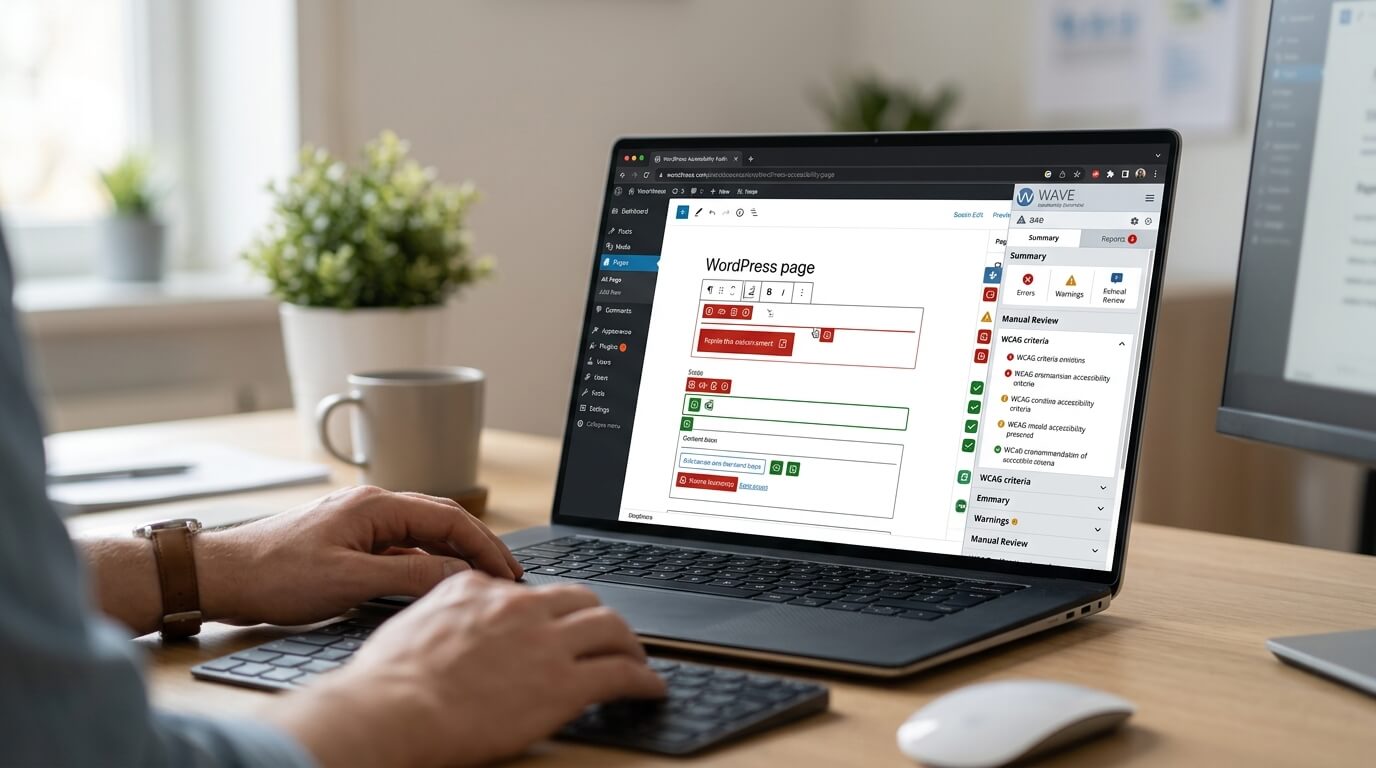
WordPress makes it relatively easy to build a professional website, but creating a website that everyone can use requires more than choosing a theme and publishing content. Accessibility should be considered throughout the design, development, and maintenance process.
For businesses, schools, nonprofits, government organizations, and other website owners, making a WordPress website accessible can help people with disabilities navigate, understand, and interact with online content. It can also help organizations work toward compliance with applicable accessibility requirements.
The Americans with Disabilities Act (ADA) is an important part of the accessibility landscape in the United States. While the ADA does not simply provide a WordPress-specific checklist, website owners can use recognized accessibility standards such as the Web Content Accessibility Guidelines (WCAG) to guide their efforts.
Webmax's guidance on WordPress ADA compliance highlights several practical areas that website owners should address, including accessible website structure, keyboard navigation, alternative text, color contrast, forms, headings, and accessible content.
What Does ADA Compliance Mean for a WordPress Website?
ADA compliance means taking steps to ensure that people with disabilities can access and use your website. Depending on your organization, industry, location, and applicable laws, the exact legal requirements may vary.
WCAG is commonly used as the technical framework for improving digital accessibility. Its principles focus on making content perceivable, operable, understandable, and robust.For a WordPress website, this means visitors should be able to do things such as:
- Read and understand website content
- Navigate pages using a keyboard
- Identify links, buttons, and form controls
- Use screen readers and other assistive technologies
- Adjust or understand content without unnecessary barriers
- Access images, videos, documents, and other digital content
- Complete forms and interactive features successfully
It is important to understand that installing an accessibility plugin or widget alone does not automatically make a website ADA compliant. Accessibility needs to be built into the website's structure, content, design, and ongoing maintenance. Webmax similarly notes that assistive tools can support accessibility, but they should be used alongside accessible website practices rather than treated as a complete solution.
1. Choose an Accessibility-Friendly WordPress Theme
Your theme plays a major role in the accessibility of your website because it controls much of its visual presentation and page structure. When selecting a WordPress theme, look for one designed with accessibility in mind. WordPress also provides an "Accessibility Ready" theme designation for themes that meet specific accessibility requirements.
An accessible theme should provide a logical structure, readable typography, visible focus indicators, appropriate color contrast, and usable navigation. However, choosing an accessible theme is only the beginning. Plugins, custom code, page builders, and content added later can introduce new accessibility problems. Before launching your website, test the complete site rather than assuming the theme makes every page accessible.
2. Use Proper Heading Structures
Headings help visitors understand how your content is organized. They are especially important for people who use screen readers because headings can provide a quick way to navigate through a page.
Use heading levels logically:
- H1: Main page title
- H2: Major sections
- H3: Subsections under an H2
- H4: Subsections under an H3 when necessary
Avoid choosing heading levels simply because they look visually appealing. If you need larger or smaller text, use CSS rather than incorrectly changing the heading hierarchy.
For example, a blog post should generally have one clear primary heading followed by logically structured subheadings. A good heading structure makes your content easier to scan for everyone, not only people using assistive technology.
3. Add Meaningful Alt Text to Images
Images can create accessibility barriers when visitors cannot see them or when assistive technologies cannot determine what they represent. Adding appropriate alternative text, commonly called alt text, helps communicate the purpose or meaning of an image to screen reader users. In WordPress, you can add alt text through the Media Library or while inserting an image into a page or post.
Good alt text should be:
- Concise
- Descriptive
- Relevant to the surrounding content
- Focused on the image's purpose
For example, instead of writing:
"image123.jpg"
you might write:
"Student using a laptop to complete an online university application."
Decorative images may not require descriptive alt text. The important point is to consider whether the image provides meaningful information and then provide an appropriate text alternative when necessary.
4. Make Sure Your Website Works With Keyboard Navigation
Not every visitor uses a mouse. Some people navigate websites entirely with a keyboard or another assistive device. Your WordPress website should allow users to move through interactive elements using keyboard controls.
Test whether you can:
- Move through links and buttons using the Tab key
- Move backward using Shift + Tab
- Activate controls using the keyboard
- Open and operate menus
- Complete forms
- Close pop-ups and dialog boxes
- Reach every important interactive element
Pay particular attention to keyboard focus. Visitors should be able to see which link, button, or control currently has focus. A website that looks attractive with a mouse but becomes difficult or impossible to navigate with a keyboard can still create significant accessibility barriers.
5. Improve Color Contrast
Color should never be the only way information is communicated. For example, simply making required form fields red may not be sufficient because some users may have difficulty distinguishing the color. Consider adding text or another clear indicator. You should also check the contrast between text and its background. WCAG provides contrast requirements that help make text more readable for people with visual impairments.
When designing your WordPress website, avoid:
- Light gray text on a white background
- Very similar colors for text and backgrounds
- Low-contrast buttons
- Links that are difficult to distinguish from surrounding text
A color contrast checker can help identify potential problems before your website goes live.
6. Make Links and Buttons Descriptive
Links should communicate where they will take the user. Avoid relying heavily on vague phrases such as "click here" or "read more" when the destination is not obvious from context.
Instead, use descriptive link text.
For example:
Less helpful:
"Click here"
Better:
"Read our website accessibility guide"
The same principle applies to buttons. A button should clearly explain its action, such as "Submit Application," "Download Report," or "Start Free Audit."
Descriptive controls make navigation easier for everyone and can be particularly helpful for screen reader users.
7. Create Accessible Forms
Forms are often essential parts of business and organizational websites. They may be used for contact requests, newsletter subscriptions, registrations, applications, purchases, and other interactions. An accessible WordPress form should have properly associated labels for its fields.
Make sure users can understand:
- What information each field requires
- Which fields are required
- What format they should use
- What went wrong when an error occurs
- How to correct the problem
Error messages should be clear and should not depend only on color. You should also test forms using keyboard navigation and, where possible, assistive technologies.
8. Make Multimedia Accessible
Videos and audio can provide valuable information, but inaccessible multimedia can exclude people with hearing, vision, or other disabilities.
Consider adding:
- Captions for videos
- Transcripts for audio content
- Audio descriptions when appropriate
- Descriptive titles and controls
- Accessible media players
If you embed YouTube videos, social media content, maps, or other third-party components into WordPress, remember that these elements can also affect your website's accessibility. Do not assume that accessibility ends with the content you directly control.
9. Check PDFs and Other Downloadable Documents
Website accessibility does not necessarily stop at HTML pages. If your WordPress website provides downloadable PDFs, brochures, forms, reports, or other documents, those files should also be reviewed for accessibility.
Potential problems can include:
- Missing document tags
- Poor reading order
- Images without alternative text
- Inadequate color contrast
- Text embedded in images
- Forms that cannot be completed using assistive technologies
Webmax emphasizes that PDFs can also contain accessibility barriers and recommends auditing and remediating documents as part of a broader accessibility strategy.
10. Be Careful With WordPress Plugins and Page Builders
One of WordPress's biggest advantages is its huge ecosystem of plugins and page-building tools. However, third-party components can also introduce accessibility problems.
Before installing a plugin, consider whether it:
- Supports keyboard navigation
- Provides accessible labels
- Uses semantic HTML
- Maintains visible focus states
- Works with screen readers
- Provides accessible error messages
- Allows you to customize accessibility-related settings
The same applies to sliders, pop-ups, mega menus, carousels, booking systems, forms, and other interactive components. A website can have an accessibility-friendly theme but still become inaccessible because of an improperly coded plugin.
11. Use an Accessibility Testing Tool
Manual testing is important, but automated accessibility testing can help you identify problems more efficiently.
An accessibility checker can scan your WordPress website and highlight potential issues that need attention. Webmax's Website Accessibility Checker, for example, is designed to scan websites, identify accessibility violations, prioritize issues, provide recommendations for fixing them, and increase the accessibility score of your website
Automated tools can help identify issues such as:
- Missing alt text
- Color contrast problems
- Certain code-related accessibility errors
- Missing labels
- Structural issues
- Other WCAG-related violations
However, automated testing should not be considered the only form of accessibility testing. Some issues require human judgment and manual testing.
12. Test Your Website With Assistive Technologies
Real-world testing can reveal issues that automated scanners may not detect. Consider testing your WordPress website with tools such as screen readers and keyboard-only navigation.
You can check whether users can:
- Understand the page structure
- Navigate headings
- Identify links and buttons
- Complete forms
- Access menus
- Understand images
- Operate interactive elements
- Recover from errors
Testing from the perspective of different users can help you identify accessibility barriers that may otherwise go unnoticed.
13. Keep WordPress, Themes, and Plugins Updated
Accessibility is not a one-time project. WordPress websites frequently change. New pages are published, plugins are updated, themes are modified, and developers add new functionality. Any of these changes can introduce accessibility problems.
Keep the following under regular review:
- WordPress installation
- Themes
- Plugins
- Custom code
- Forms
- Multimedia
- Downloadable documents
Continuous monitoring is particularly important because maintaining accessibility requires ongoing attention rather than a single compliance check. Webmax's accessibility resources similarly emphasize monitoring and tracking improvements over time.
14. Consider Adding an Accessibility Statement
An accessibility statement can communicate your organization's commitment to creating an inclusive website.
Depending on your organization's needs, it may explain:
- Your accessibility commitment
- The standards you are working toward
- Known accessibility limitations
- Steps you are taking to improve accessibility
- How users can report accessibility problems
- How they can request assistance
An accessibility statement does not replace actual accessibility work, but it can provide visitors with useful information and a way to report barriers.
15. Remember That Accessibility Is an Ongoing Process
One of the most important things to understand about WordPress ADA compliance is that accessibility is not a box you check once. A website can be accessible today and develop new problems tomorrow. For example, publishing a new blog post with missing alt text, adding an inaccessible PDF, installing a problematic plugin, or changing the website's color scheme could create new barriers. For that reason, website owners should establish an ongoing accessibility process that includes automated scanning, manual testing, content reviews, and remediation.
WordPress ADA Compliance Checklist
Before considering your WordPress website ready, review the following areas:
- Use an accessibility-friendly WordPress theme
- Organize headings logically
- Add meaningful alt text to informative images
- Make navigation possible with a keyboard
- Provide visible keyboard focus
- Check text and background color contrast
- Use descriptive links and buttons
- Make forms accessible
- Provide captions and transcripts for multimedia
- Review PDFs and downloadable documents
- Test plugins and third-party components
- Scan the website for accessibility issues
- Perform manual accessibility testing
- Test with assistive technologies where possible
- Keep WordPress, themes, and plugins updated
- Monitor accessibility after making changes
- Provide an accessibility statement and feedback method where appropriate
Final Thoughts
Making a WordPress website ADA compliant requires more than installing an accessibility plugin. The goal should be to build accessibility into every part of the website, from its theme and navigation to its images, forms, multimedia, documents, and interactive features.
Start by choosing an accessibility-friendly foundation, then address common barriers such as missing alt text, poor color contrast, inaccessible forms, inadequate keyboard navigation, and unclear page structures. Automated accessibility tools can help you find issues, while manual testing and human review can provide additional insight. It is also important to remember that accessibility is an ongoing responsibility. As your WordPress website changes, accessibility should be reviewed and maintained.
Following recognized accessibility standards such as WCAG can provide a practical framework for improving your website and creating a better online experience for people with disabilities. Webmax's resources similarly recommend combining accessible website practices, testing, monitoring, and user-focused accessibility solutions rather than relying on a single tool.
Ultimately, an accessible WordPress website is not only about compliance. It is about making sure more people can access your information, use your services, and interact with your organization online.