
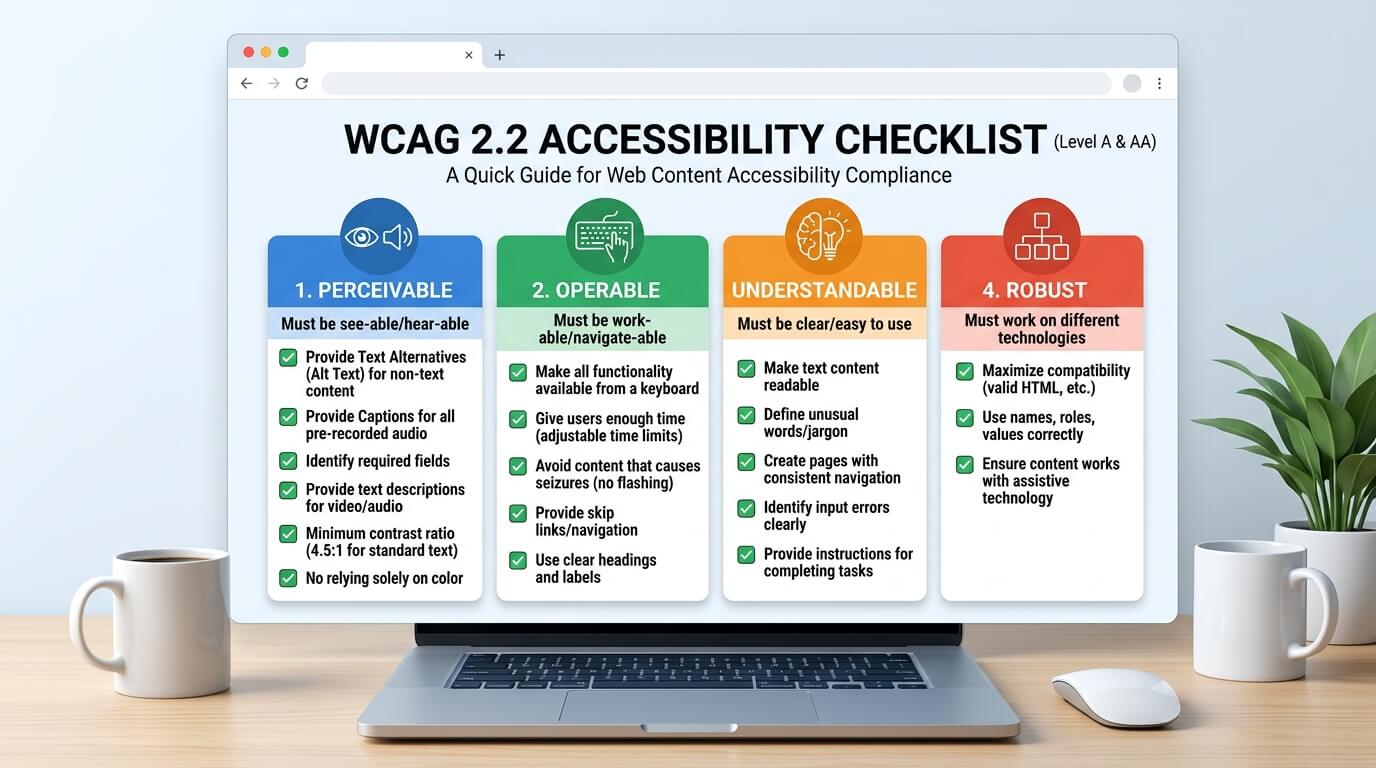
WCAG Checklist: A Practical Website Accessibility Checklist
A website can look modern and work perfectly for most users while still creating significant barriers for people with disabilities.
Missing image descriptions, poor color contrast, inaccessible forms, keyboard navigation problems, and incorrect page structures can all make a website difficult or impossible to use with assistive technologies.
That's why having a WCAG checklist is useful.
The Web Content Accessibility Guidelines (WCAG), developed by the World Wide Web Consortium (W3C), provide a framework for evaluating and improving the accessibility of websites and digital content.
This practical WCAG checklist covers some of the most important areas businesses, designers, developers, and website owners should review when evaluating website accessibility.
Important: A checklist is a useful starting point, but it does not replace a comprehensive accessibility audit. Some accessibility requirements require manual testing, human judgment, and testing with assistive technologies.
What Is a WCAG Checklist?
A WCAG checklist is a practical list of accessibility requirements and testing areas based on the Web Content Accessibility Guidelines.
It can help organizations identify common accessibility issues and determine which areas of a website need improvement.
A checklist can be used during:
- Website development
- Website redesigns
- Content publishing
- Accessibility audits
- Quality assurance testing
- Ongoing accessibility monitoring
The goal is not simply to check boxes. The goal is to ensure that people with disabilities can effectively perceive, navigate, understand, and interact with a website.
WCAG Checklist
1. Images and Alternative Text
Images can create accessibility barriers when their purpose or information cannot be communicated to users who cannot see them.
Checklist
☐ Meaningful images have appropriate alternative text.
☐ Decorative images are appropriately identified as decorative.
☐ Informative images communicate their purpose through an accessible alternative.
☐ Complex images have sufficient descriptions when necessary.
☐ Image-based buttons and links have accessible names.
Why it matters
Screen reader users may rely on alternative text to understand the purpose or information conveyed by images.
For example, an image of a product should not simply have an alt attribute such as:
- image123.jpg
The alternative should communicate useful information about the image where appropriate.
2. Headings and Page Structure
A clear page structure helps users understand how content is organized.
Checklist
☐ Pages have a clear main heading.
☐ Heading levels are used logically.
☐ Headings describe the content that follows them.
☐ Headings are not used only to make text appear larger.
☐ Content is organized into meaningful sections.
A logical heading structure can also help screen reader users navigate a page more efficiently.
3. Keyboard Accessibility
Not everyone uses a mouse or touchscreen.
Some users navigate websites entirely through a keyboard or another keyboard-like input device.
Checklist
☐ All interactive elements can be accessed using a keyboard.
☐ Links and buttons can be activated using the keyboard.
☐ Users can move through the page in a logical order.
☐ Keyboard focus is visible.
☐ Users do not become trapped inside menus, dialogs, or other components.
☐ Skip navigation functionality is available where appropriate.
Quick test
Try using the website without touching your mouse.
Press:
Tab → Shift + Tab → Enter → Space → Arrow Keys
Can you navigate and operate the important functionality?
If not, the website may have keyboard accessibility issues.
4. Color and Contrast
Color should never be the only way information is communicated.
Poor contrast can also make content difficult to read for people with low vision or color-vision deficiencies.
Checklist
☐ Text has sufficient color contrast.
☐ Important interface elements have sufficient contrast.
☐ Information is not communicated through color alone.
☐ Links can be distinguished appropriately.
☐ Focus indicators are clearly visible.
For example, a form should not rely only on a red border to indicate an error.
It could also provide an accessible error message such as:
Please enter a valid email address.
5. Links and Buttons
Links and buttons should clearly communicate their purpose.
Checklist
☐ Link text describes the destination or purpose.
☐ Buttons have clear accessible names.
☐ Links are distinguishable from surrounding content.
☐ Interactive elements have appropriate focus indicators.
☐ Empty links or buttons are not present.
Avoid vague link text such as:
Click here
when a more descriptive label can be used.
For example:
Download the Accessibility Report
provides more useful information.
6. Forms and Input Fields
Forms are one of the most common areas where accessibility problems occur.
Checklist
☐ Every form field has an appropriate label.
☐ Required fields are clearly identified.
☐ Instructions are provided when necessary.
☐ Error messages clearly identify the problem.
☐ Users can understand how to correct errors.
☐ Form controls can be operated using a keyboard.
☐ Autofill and input purposes are appropriately supported where applicable.
☐ Error information is accessible to assistive technologies.
A form that looks simple visually can still be difficult to use if labels, instructions, focus behavior, and error messages are not properly implemented.
7. Navigation
Website navigation should be predictable and consistent.
Checklist
☐ Navigation menus are keyboard accessible.
☐ Navigation is consistent across pages.
☐ Users can identify the current page or location.
☐ Page titles are meaningful.
☐ Multiple navigation mechanisms are available where appropriate.
☐ Users can bypass repetitive content where necessary.
Clear navigation benefits everyone, particularly users who rely on keyboards or screen readers.
8. Videos and Audio
Multimedia content should be accessible to people who cannot hear or see all of the information presented.
Checklist
☐ Videos have accurate captions where required.
☐ Important audio information has appropriate alternatives.
☐ Transcripts are provided where appropriate.
☐ Audio that plays automatically can be controlled.
☐ Video controls are accessible.
☐ Important visual information is appropriately described when necessary.
Captions are also useful for people watching videos in environments where they cannot use audio.
9. Screen Reader Compatibility
A website should provide meaningful information to users who rely on screen readers.
Checklist
☐ Page structure is understandable with a screen reader.
☐ Headings are properly identified.
☐ Links and buttons have meaningful accessible names.
☐ Form fields have appropriate labels.
☐ Images have appropriate alternatives.
☐ Dynamic content changes are communicated appropriately.
☐ Dialogs and menus can be operated correctly.
☐ Content is presented in a logical reading order.
Screen reader testing can reveal problems that automated scanning may not detect.
10. Focus Management
Keyboard focus should behave predictably.
Checklist
☐ Focus is visible.
☐ Focus moves logically through interactive content.
☐ Opening a dialog or modal does not create an inaccessible experience.
☐ Focus is managed appropriately when dialogs close.
☐ Users can determine where they are on the page.
A visible focus indicator is particularly important for keyboard users.
11. Mobile Accessibility
Accessibility should not be limited to desktop websites.
Checklist
☐ Navigation works on mobile devices.
☐ Interactive controls are usable on touchscreens.
☐ Content remains readable when zoomed.
☐ Orientation changes do not unnecessarily prevent access.
☐ Forms work correctly on smaller screens.
☐ Interactive elements have sufficient usable space.
Mobile users may also rely on screen readers, voice control, zoom, and other accessibility features.
12. Responsive and Zoom Testing
Users may need to enlarge content to make it easier to read.
Checklist
☐ Content remains usable when zoomed.
☐ Text does not overlap other content.
☐ Important functionality remains available at increased text sizes.
☐ Users do not lose important information when the viewport changes.
☐ Horizontal scrolling is minimized where appropriate.
Responsive design and accessibility should work together.
13. Content and Readability
Accessibility is also about how information is communicated.
Checklist
☐ Content uses clear and understandable language.
☐ Instructions are easy to follow.
☐ Important information is structured logically.
☐ Long content is divided using meaningful headings.
☐ Abbreviations and unusual terminology are explained when necessary.
☐ Links clearly describe their destinations.
Clear content can make digital experiences easier for people with cognitive and learning disabilities as well as many other users.
14. PDF and Downloadable Documents
Website accessibility does not stop at HTML pages.
Documents linked from a website can also create accessibility barriers.
Checklist
☐ PDFs are accessible.
☐ Documents have appropriate headings and structure.
☐ Images have appropriate alternatives.
☐ Tables have appropriate structure.
☐ Document language is identified where required.
☐ Forms in downloadable documents are accessible.
If users need to download a document to complete an important task, that document should also be considered as part of the accessibility experience.
15. HTML and ARIA
Proper semantic HTML is an important part of accessible development.
Checklist
☐ Appropriate HTML elements are used.
☐ Buttons are implemented as buttons where appropriate.
☐ Links are implemented as links where appropriate.
☐ ARIA is used correctly when necessary.
☐ Invalid or unnecessary ARIA attributes are avoided.
☐ Custom interactive components expose appropriate roles, states, and properties.
ARIA can help improve accessibility when used correctly, but incorrect ARIA can introduce additional problems.
16. Automated Accessibility Testing
Automated testing can help identify many common accessibility issues quickly.
Checklist
☐ Website pages are regularly scanned.
☐ Automated accessibility errors are reviewed.
☐ Issues are prioritized based on severity and user impact.
☐ New pages and features are included in testing.
☐ Previously resolved issues are monitored.
Automated tools are valuable for continuous monitoring, but they cannot detect every accessibility issue.
17. Manual Accessibility Testing
Manual testing is an important part of a comprehensive accessibility evaluation.
Checklist
☐ Keyboard-only testing is performed.
☐ Screen reader testing is performed where appropriate.
☐ Focus behavior is evaluated.
☐ Forms are manually tested.
☐ Navigation is manually evaluated.
☐ Interactive components are tested.
☐ Content is reviewed for usability and accessibility.
Manual testing helps identify issues that automated tools may not understand.
18. Accessibility Testing With Assistive Technologies
Accessibility should be evaluated with relevant user agents and assistive technologies.
Depending on the website and target audience, testing may include screen readers and accessibility features available on desktop and mobile platforms.
Checklist
☐ Relevant screen reader workflows are tested.
☐ Keyboard interaction is tested.
☐ Browser accessibility features are considered.
☐ Mobile accessibility features are tested where relevant.
☐ Important user journeys are evaluated using assistive technology.
The appropriate accessibility support baseline should be defined based on the digital product, target users, browsers, operating systems, and assistive technologies that need to be supported.
19. Accessibility Documentation and Remediation
Finding accessibility issues is only the first step.
Checklist
☐ Accessibility issues are documented.
☐ Each issue has a clear description.
☐ Issues include relevant page or component information.
☐ Remediation recommendations are provided.
☐ Issues are assigned priorities.
☐ Resolved issues are retested.
☐ Accessibility improvements are tracked over time.
A good accessibility program should create a repeatable process for identifying, fixing, and monitoring accessibility issues.
WCAG Checklist: Quick Summary
Before publishing or reviewing a website, ask:
Images
- ☐ Is alternative text provided appropriately?
Structure
- ☐ Are headings and page structure logical?
Keyboard
- ☐ Can the entire website be operated without a mouse?
Contrast
- ☐ Is text and important interface content sufficiently distinguishable?
Forms
- ☐ Are labels, instructions, and error messages accessible?
Navigation
- ☐ Is navigation consistent and understandable?
Multimedia
- ☐ Are captions and other alternatives provided where appropriate?
Screen Readers
- ☐ Can important content and functionality be understood using a screen reader?
Mobile
- ☐ Is the website accessible on mobile devices?
Documents
- ☐ Are PDFs and downloadable documents accessible?
Testing
- ☐ Have both automated and manual accessibility tests been performed?
Monitoring
- ☐ Is accessibility being monitored after changes are made?
Is a WCAG Checklist Enough for Compliance?
A checklist is an excellent starting point, but it should not be treated as proof that a website is fully accessible or legally compliant.
Accessibility can depend on many factors, including the implementation of the website, content, user journeys, assistive technologies, applicable regulations, and the specific accessibility requirements being evaluated.
Automated scans can identify many technical issues, but manual testing and human evaluation are also important.
For organizations that rely on their websites for sales, customer service, healthcare, education, employment, or other essential services, a more comprehensive accessibility assessment can provide a clearer understanding of accessibility risks and remediation priorities.
How WebMax Can Help
At WebMax, we help organizations build and maintain more accessible digital experiences.
Our services can include:
- Web Accessibility Audits
- WCAG Testing
- Accessibility Monitoring
- Accessibility Remediation
- Accessibility Widgets
- VPAT Support
- Accessibility Consulting
A comprehensive accessibility strategy can combine automated monitoring, manual testing, remediation, and ongoing evaluation.
Rather than waiting for users to report accessibility problems, organizations can proactively identify issues and continuously improve their websites.
Start Your Accessibility Journey
Use this WCAG checklist as a starting point to identify common accessibility issues on your website.
If you need a more comprehensive evaluation, WebMax can help assess your website, identify accessibility barriers, prioritize remediation, and establish an ongoing accessibility strategy.
Visit WebMax to learn more about web accessibility audits, WCAG testing, monitoring, remediation, and accessibility solutions.